> ## Documentation Index
> Fetch the complete documentation index at: https://danswer-docs-google-drive-connector.mintlify.site/llms.txt
> Use this file to discover all available pages before exploring further.
# Google Drive Service Account
> Set up a service account with domain-wide delegation for the Google Drive connector
A service account lets Onyx read every user's Drive in a Google Workspace without anyone signing in.
A Workspace administrator grants it domain-wide delegation, and Onyx then acts as each user in turn.
This is the method to use for a Workspace,
and the one [Auto Sync Permissions](/admins/connectors/official/google_drive/overview#auto-sync-permissions) needs.
To index a single account without a Workspace, use [OAuth](/admins/connectors/official/google_drive/oauth) instead.
## Before you begin
You need:
* A Google Cloud project, or permission to create one.
* A Google Workspace **Super Admin**, or a delegated admin who can edit **API controls**,
to grant domain-wide delegation in the Google Admin console.
* A Workspace user to act as the **primary admin**. Onyx impersonates this user for setup calls and to list the
Workspace's users, so it needs the admin privileges in [Choose the primary admin](#choose-the-primary-admin).
## Configure Google Cloud
In the [Google Cloud console](https://console.cloud.google.com/projectcreate), create a project,
or select an existing one. The project only holds the service account; it does not need billing.
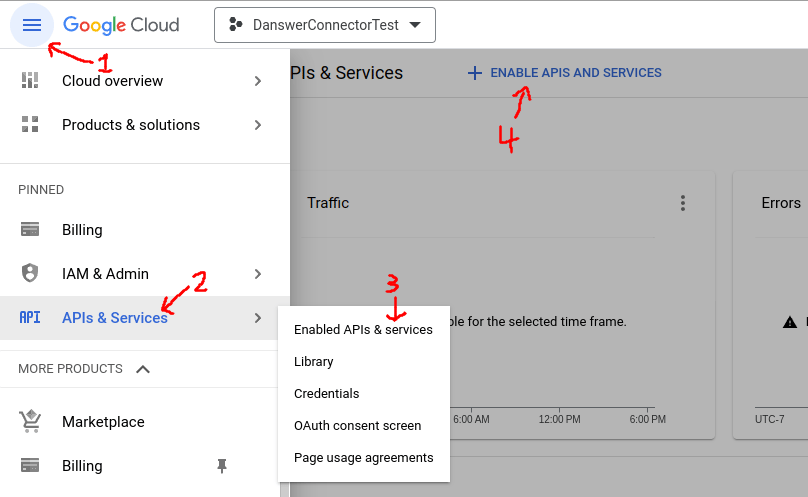
Open **APIs & Services → Library** and enable three APIs:
* **Google Drive API**
* **Admin SDK API**
* **Google Docs API**, which Onyx uses to split Google Docs at their headings
Each has a direct link: [Drive](https://console.cloud.google.com/flows/enableapi?apiid=drive.googleapis.com),
[Admin SDK](https://console.cloud.google.com/flows/enableapi?apiid=admin.googleapis.com),
[Docs](https://console.cloud.google.com/flows/enableapi?apiid=docs.googleapis.com).
Open [IAM & Admin → Service Accounts](https://console.cloud.google.com/iam-admin/serviceaccounts)
and select **Create service account**. Give it a name such as `onyx-drive-connector` and select **Done**.
The optional role and access steps can stay empty; the service account needs no project roles.
Select the new service account, open the **Keys** tab, and select **Add key → Create new key**.
Choose **JSON** and select **Create**. Google downloads the key file. Keep it safe; you upload it to Onyx later.
Organizations created since May 2024 block service account keys by default,
and **Create new key** fails with a policy error.
An organization policy administrator can allow keys for this project:
open [Organization
Policies](https://console.cloud.google.com/iam-admin/orgpolicies/iam-disableServiceAccountKeyCreation),
select the project, select **Manage policy**, choose **Override parent's policy**,
set the rule to **Not enforced**, and select **Set policy**.
On the service account's **Details** tab, copy the **Unique ID**, a long number.
Domain-wide delegation identifies the service account by this ID, not by its email address.
## Grant domain-wide delegation
Sign in to the [Google Admin console](https://admin.google.com) as a Super Admin.
Go to **Security → Access and data control → API controls**,
then select **Manage Domain Wide Delegation** at the bottom.
The [direct link](https://admin.google.com/ac/owl/domainwidedelegation) opens the same page.
Select **Add new**. In **Client ID**, paste the service account's Unique ID. In **OAuth scopes**,
paste all four scopes as one comma-separated line:
```text theme={null}
https://www.googleapis.com/auth/drive.readonly,https://www.googleapis.com/auth/drive.metadata.readonly,https://www.googleapis.com/auth/admin.directory.user.readonly,https://www.googleapis.com/auth/admin.directory.group.readonly
```
Select **Authorize**. All four are read-only.
The two Admin SDK scopes let Onyx list the Workspace's users and groups.
## Choose the primary admin
Onyx impersonates one Workspace user, the **primary admin**,
to list the Workspace's users and shared drives and as a fallback for opening files. The user needs:
* A Google Workspace license with **Drive and Docs** turned on.
* An admin role with these privileges, set under **Account → Admin roles** in the Google Admin console:
* **Admin console privileges → Services → Drive and Docs → Settings**
* **Admin API privileges → Users → Read**
* **Admin API privileges → Groups → Read**
* **Admin API privileges → Organization Units → Read**
An existing administrator works, and so does an account created for Onyx, such as `onyx-robot@example.com`.
Use a real Workspace user, not the service account's own email address.
Onyx takes the Workspace domain from this address and indexes the users of that domain.
## Create the credential in Onyx
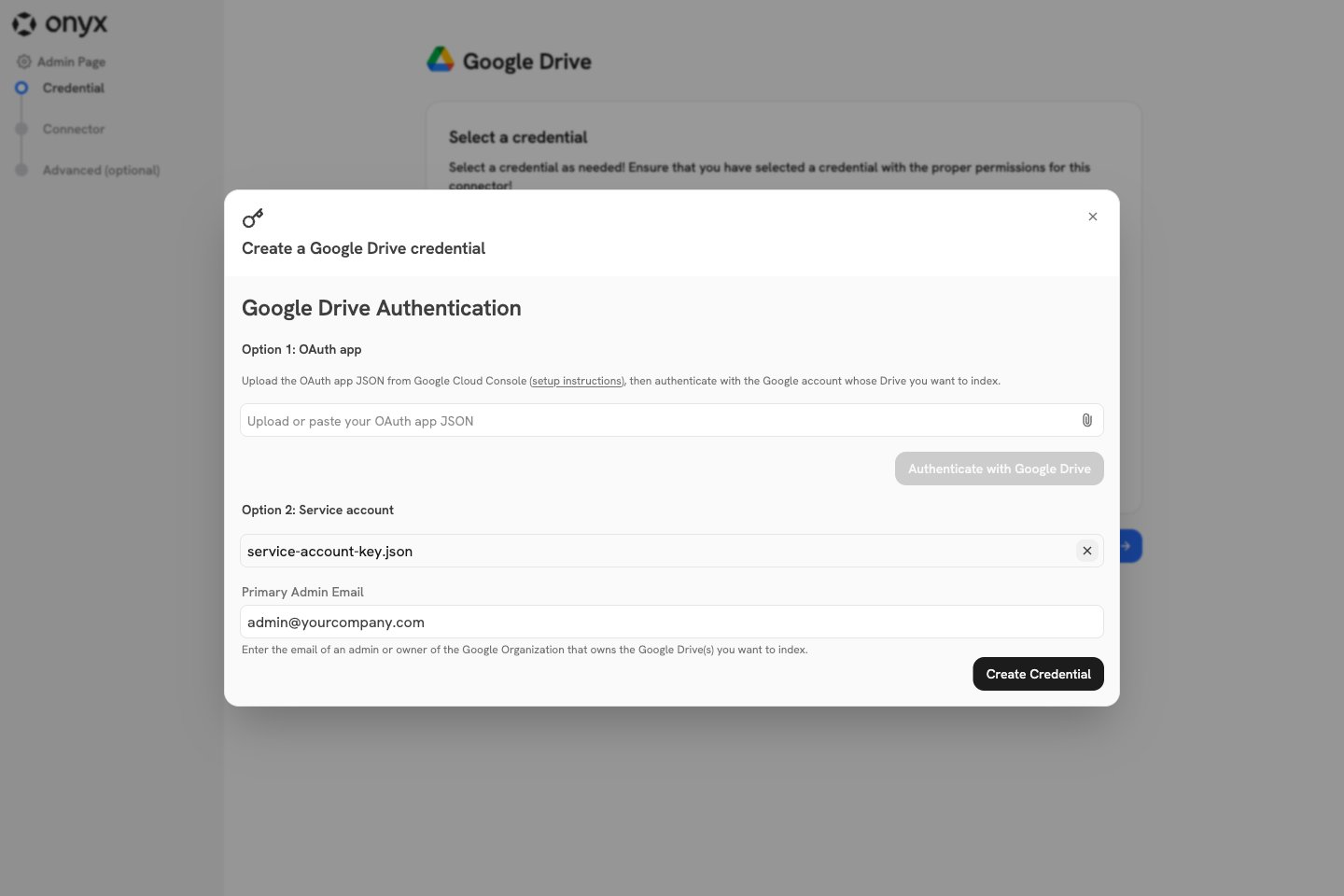
In Onyx, go to **Admin Panel → Add Connector** and select **Google Drive**, then select **Create New**.
Under **Option 2: Service account**, upload or paste the JSON key file.
Onyx rejects a file that is not a service account key.
In **Primary Admin Email**,
enter the address of the user from [Choose the primary admin](#choose-the-primary-admin).
Select **Create Credential**.
Close the dialog, select the new credential, and select **Continue**.
Then follow [Configure the connector in
Onyx](/admins/connectors/official/google_drive/overview#configure-the-connector-in-onyx).
Each credential holds its own key. To index a second Workspace,
repeat this page with a service account delegated in that Workspace and create a second credential.
This documentation is built and hosted on [Mintlify](https://mintlify.com), a developer documentation platform.